
Tiny Desk AI field notes
Tiny Desk AI face consistency: what to check first
A practical checklist for the photo, the assigned role and the finished clip.
Separate a wrong photo assignment from a changing face
“The face looks wrong” can describe different problems. A photo in the wrong slot is a setup problem. A correct photo that becomes a different-looking person in the finished clip is an output problem. A face that changes between shots is another output problem. Start by identifying which one you are seeing.
The wrong person is in a role
Check the photo thumbnail, scene and assigned role. Replace the photo in that position before confirming.
See the five-role mapThe right person looks different
Keep the job ID and note the shot or moment. Check the original reference before deciding whether to request a review.
Report an existing resultThe free storyboard helps with the first problem. It displays the photos you supplied and the planned shots. It does not run the video model, so it cannot test how the person’s face will look while moving.
Choose a portrait whose facial details you can already see
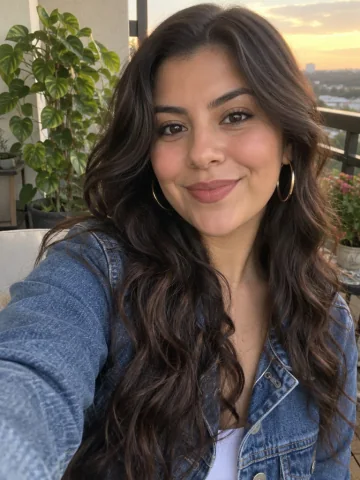 ✓!!!
✓!!!The same reference portrait is shown with illustrative lighting, size and blur changes. No AI generation is used.
Open the original image and inspect the eyes, nose and mouth. Use a recent photo with an easy-to-read angle and even light. Avoid a face partly hidden by a hand, microphone, heavy shadow or sunglasses. Keep recognisable details such as hair and ordinary glasses visible rather than asking the model to invent them.
A bigger file is not automatically a clearer reference. A heavily sharpened crop, screenshot of a screenshot or beauty-filtered selfie may contain less useful identity detail than a modest original photo. Try a different source photo when you cannot see the features clearly yourself. This is an input-preparation checklist, not a measured guarantee that a particular photo will generate a better result.
Use one adult per photo. Our editor does not automatically identify which face to use from a group picture. For accepted formats and dimensions, follow the current photo requirements.
Keep the scene and clothing request easy to interpret
Let the selected scene provide the concert arrangement. A short outfit request such as “plain navy sweaters” is easier to check than a request to change everyone’s age, facial features, clothing and position at once. Clothing controls describe a desired look; they are not identity locks.
For a solo video, Soul session and Indie session each take one portrait. For two distinct people, use a duet and place a different portrait on each singer. Outstanding band with “Use my face for every role” intentionally repeats one likeness across the band. If you wanted five different people, turn that option off and supply the five portraits instead.
Left and right refer to the viewer’s perspective. Check each supplied portrait in the duet map before continuing; an empty singer position becomes a fictional adult. Changing scenes preserves unused local photos, so check the currently visible thumbnails rather than assuming the previous scene’s arrangement carried across.
Review the result once, then choose a specific next action
- Watch the whole downloaded clip.Note whether the problem is one face, one close-up or every shot. Keep the original MP4, not only a compressed social upload.
- Compare with the submitted portrait.Look for an obscured feature or a wrong assignment. Do not assume that higher resolution is the missing step.
- Record the job ID and moment.For example: “Lead face changes after the close-up.” A concrete description is easier to review than “bad quality.”
- Decide before spending again.Report a serious technical issue. If you choose a new generation, change the identified input or direction rather than clicking repeatedly.
Uncertain or interrupted tasks need a different response: check My videos and use Find existing video when offered. That looks up the original request without starting another one. Confirmed failures return their reserved video credit; a completed result and a cash refund request follow the published review and refund rules.
Full HD is a fresh Seedance 2.5 generation at 1080p, not a repair pass on your HD file. It can also make an error more visible. Read the HD versus Full HD guide for what the upgrade actually changes.
Questions before your next step
Does 1080p fix a face that looks wrong?
No. Full HD changes the model, duration and resolution; it is not a face-repair tool. Check the portrait and its assigned role first. A new generation may still change a person’s appearance.
Does the free storyboard show my final face?
No. It places your local portraits into a cast and camera plan. It helps you check the setup before spending a credit, but it does not run the video model or predict the finished likeness.
Should I immediately generate again if a face looks different?
First save the job ID and check the submitted setup. A completed video with a serious technical issue can be reported for review. Repeatedly generating the unchanged setup spends additional credits without identifying the cause.
Check your references before another Tiny Desk AI generation
Open a single-person scene to review your portrait locally, or return to the scene you already prepared.
Review a solo setupProduct behaviour checked on . These are preparation and troubleshooting recommendations, not a benchmark of current-model output or a promise of exact likeness.