
Tiny Desk AI field notes
How to share your Tiny Desk AI video
The frame, file, audio and disclosure checks between a finished concert and a public post.
Choose the shape for where your Tiny Desk AI video will appear
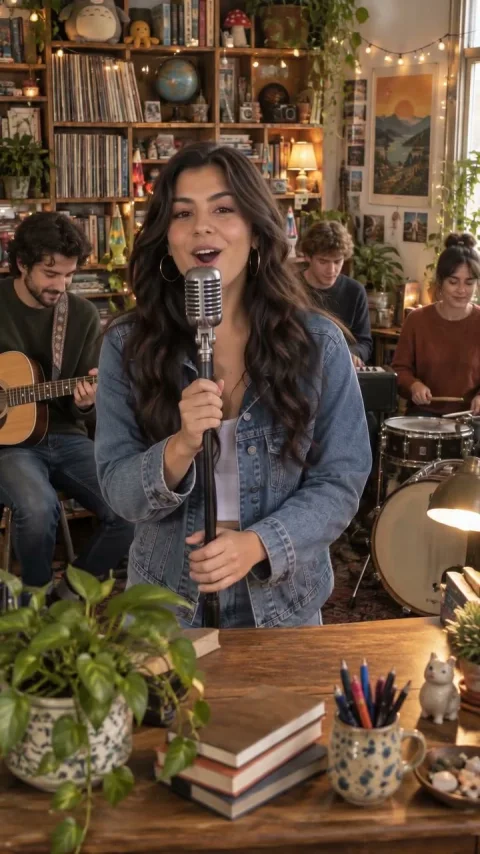 9:16
9:16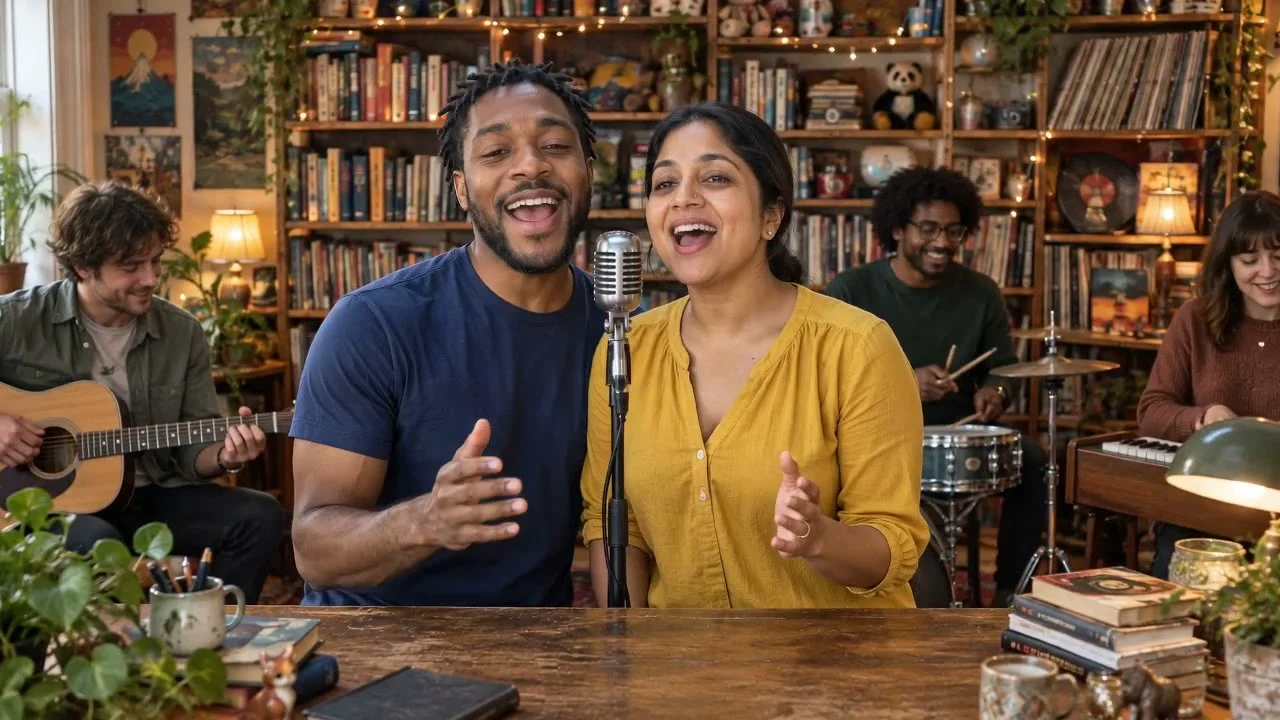 16:9
16:9Reference images illustrate framing, not this generator’s output quality.
Choose 9:16 when you want a vertical composition. Choose 16:9 when the wider band arrangement matters more than filling a phone screen. Both shapes are available in HD and Full HD. Set the shape before generation: cropping a finished landscape clip into portrait may remove a singer, instrument or gesture.
YouTube’s current guidance classifies eligible square or vertical uploads up to three minutes as Shorts. It recommends a wider format such as 16:9 when you do not want that classification. Our 15-second HD and 19-second Full HD lengths fit within that duration; classification still follows your channel and upload settings. Read YouTube’s Shorts format guidance.
Download the MP4 and watch it before opening a social app
- Save the finished file.Open My videos in the same browser, with your saved recovery code or linked Google account, and download within seven days.
- Watch every shot.Check faces, role assignments, framing and the ending. A poster alone cannot show motion problems.
- Listen once with sound on.Silent video should be silent. AI background music is an optional new instrumental, not the original song.
- Keep a local original.Use the downloaded MP4 when uploading elsewhere, instead of screen-recording a player or repeatedly exporting a social copy.
If a result is unplayable, keep its job ID and use support for an existing video. A fresh generation is not a download troubleshooting step. If the local file plays but a social upload does not, first inspect the platform’s upload error and its accepted-file guidance.
Decide on audio before you publish
The default. Review the video, then add audio only if you can use it for that post.
An optional generated accompaniment. It does not reproduce “Outstanding.”
The site does not include the original recording, copy its lyrics, clone an artist’s voice or guarantee matching mouth movements. Adding a song afterward changes the soundtrack; it does not automatically synchronise the performer’s lips.
When a platform offers a music library, check what is available for your account, region and type of post. Do not assume that a sound available for one personal post can be downloaded and reused on another service or in an advertisement. If you add music outside the platform, confirm that your planned use is permitted.
Label the Tiny Desk AI performance as synthetic
The scene shows people in a performance they did not actually record. Give viewers that context in the caption and use the platform’s disclosure control where required. A short description such as “Our imaginary desk concert — made with AI” makes the premise clear without pretending it was an official appearance.
TikTok
TikTok requires labels for realistic AI-generated images, audio and video. Its help page describes the AI-generated content setting in the posting flow. Check that setting before publishing the MP4.
TikTok’s AI-content guidanceMeta uses AI info labels and disclosure signals across Instagram, Facebook and Threads. Use the available disclosure control for a realistic synthetic performance; a caption does not remove the need to follow the current posting rules.
Meta’s AI-label explanationYouTube
YouTube requires disclosure of realistic generated or altered content, including a person doing something they did not do. Use the AI-use disclosure in the upload process when publishing this performance.
YouTube’s disclosure guidanceMake sure every pictured person has agreed to the AI use and your intended sharing. Do not imply affiliation with NPR, an artist’s endorsement or a real live event. Platform settings and labels can change; the linked platform instructions are the source for their current workflow.
For short original caption ideas, open the Tiny Desk AI captions and hashtags. Keep the AI context when adapting them.
Questions before your next step
Can I make a Tiny Desk AI video for TikTok and YouTube Shorts?
Yes. Choose 9:16 for a vertical video. Choose 16:9 when you want a landscape upload instead. Pick the shape before generation; changing it later requires editing or another generation.
Does the download include the original Outstanding song?
No. New setups are silent by default. The optional AI background music setting requests a new instrumental track, not the original song or recording. Add other audio only when its use is permitted for your account, platform and post.
How long can I download my finished video?
Completed videos are available through My videos for seven days. Save the MP4 to your own device within that period. Downloading your file is separate from publishing it on a social platform.
Prepare a Tiny Desk AI video for your next post
Choose the concert scene first, then the people, frame and sound.
Prepare my concertProduct details and linked platform guidance checked on . No reach, platform approval, music permission or monetisation outcome is promised.