
The listening notes
Outstanding Tiny Desk AI.
A familiar idea, your own band.
A little desk, a full band and someone you recognise on the mic. Here is the story behind the format, plus a practical way to turn your own photos into a new performance.
What is the Outstanding Tiny Desk AI trend?
The phrase brings together The Gap Band’s song “Outstanding,” Charlie Wilson’s Tiny Desk performance and AI reinterpretations of a close-packed band behind a desk. The surprise is the casting: a familiar face appears where you expect a musician.
Different tools use different methods. Some replace people in an existing clip; others build a fresh performance from reference photos. That distinction changes the camera movement, soundtrack and result you should expect.
The concert, frame by frame
Four moments that define the look.
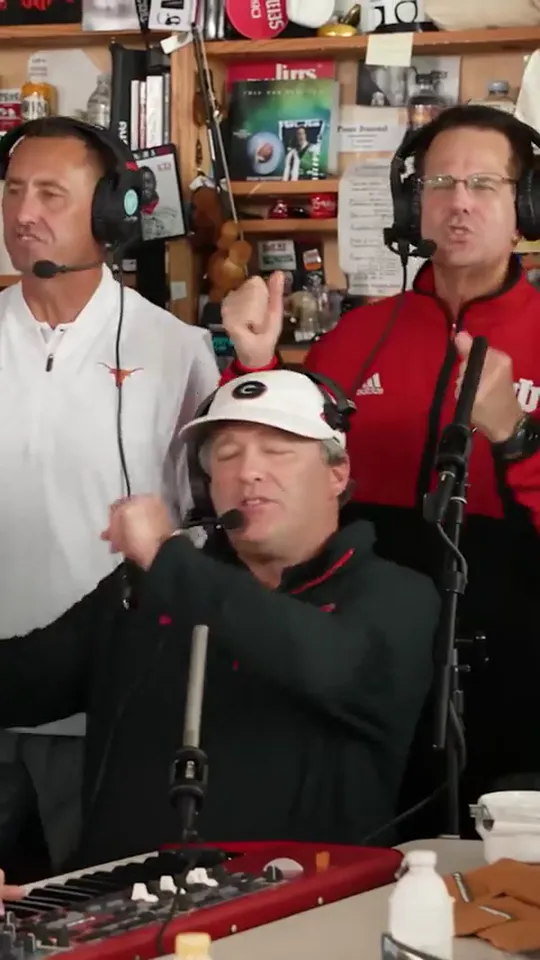
Set the room
The opening brings the lead and backing singers together around a crowded desk, with records and shelves filling the room.
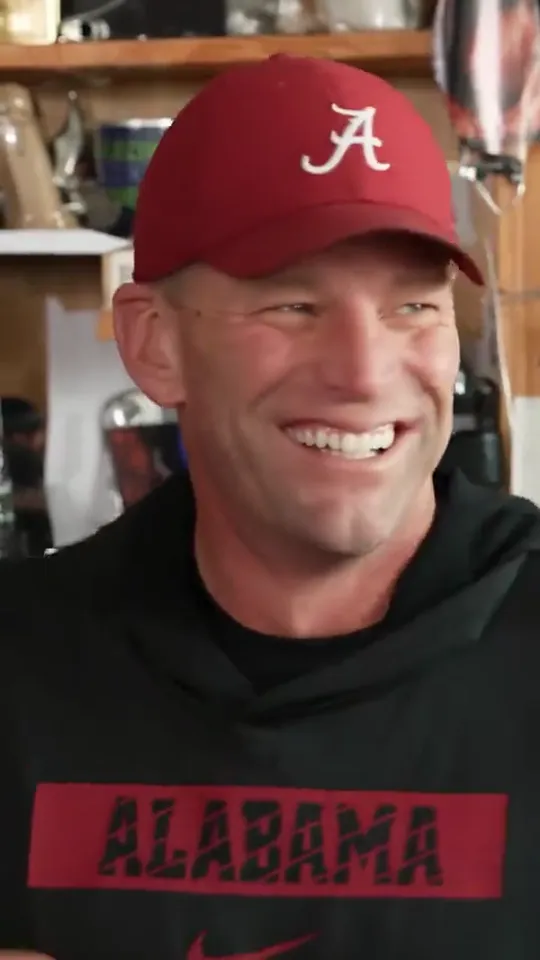
Bring the lead into focus
A closer frame makes the singer’s expression the centre of attention, giving the performance a more personal feel.
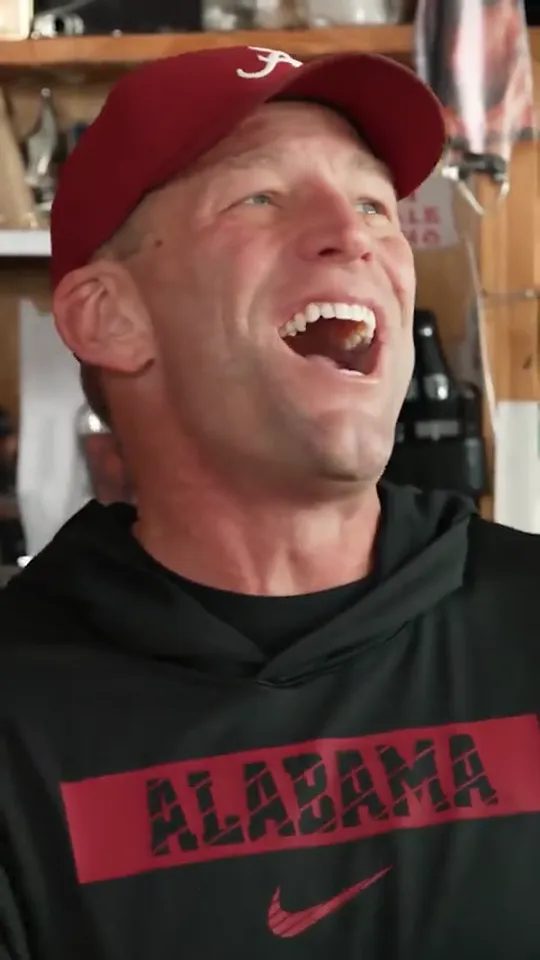
Leave room for a laugh
A burst of laughter breaks up the singing and adds the spontaneous energy of friends sharing a small stage.
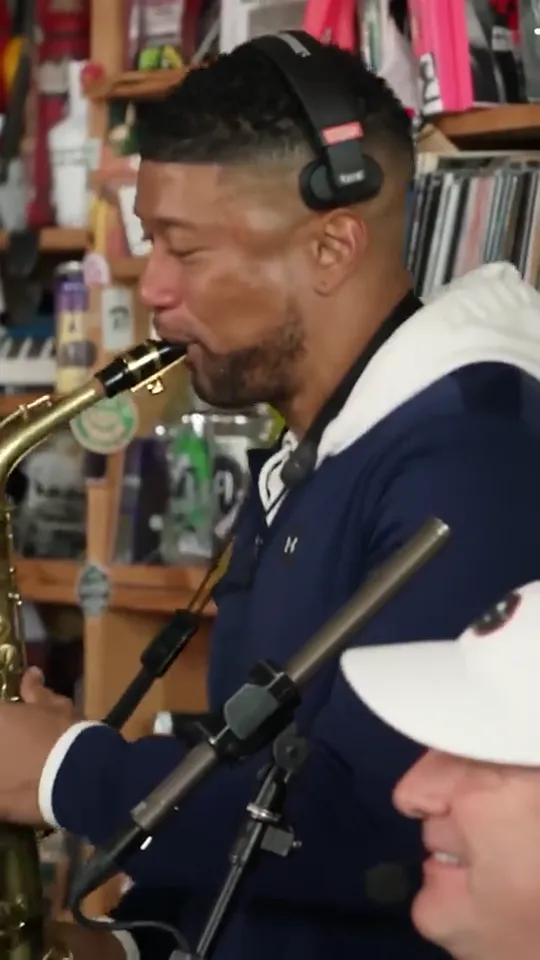
Hand it to the sax
The focus shifts to the sax player, giving another member of the band a moment in the spotlight.
Trend reference frames, not videos made with this tool. Your performance is newly generated; camera shots and expressions can vary.
From the record to your own desk concert
Two dated musical references, followed by the three choices that turn the idea into a personal AI video.
1982 · The record
“Outstanding” on Gap Band IV
The Gap Band’s album gave the song its home, with Charlie Wilson on lead vocals. The label’s history places the album in 1982.
· The performance
Charlie Wilson at the Tiny Desk
NPR published Wilson’s desk concert with “Outstanding” in the set list. The intimate setting supplies the visual reference. Read NPR’s original concert notes.
The reinterpretation
The cast becomes the joke
In an AI version, recognition does the work: someone you know takes the mic, joins the backing singers or picks up the sax. The resulting scene is synthetic, even when it resembles a live performance.
Your version
Pick a cast that is in on it
Start with your own portrait or consenting adult friends. Choose the lead and optional bandmates. In our editor, each person gets a separate photo slot and role.
A new scene
Preview, generate, then share
Check the local storyboard, choose a format and confirm a new performance. Download the finished MP4 and describe it as AI-generated when you post.
The record and concert dates are linked above. The final three stops follow the idea into your own workflow.
Side B · Make it yours
How to make your own Tiny Desk AI video
Choose one clear lead portrait.
Use a consenting adult, visible eyes and even light. Add separate photos for backing vocals, keys or sax, or leave those slots to fictional bandmates. This version does not split a group photo automatically. See the photo checklist.
Set the quality and frame.
HD uses Seedance 2.0 Fast for 15 seconds at 720p. Full HD uses Seedance 2.5 for 19 seconds at 1080p. Both offer 9:16 portrait and 16:9 landscape. A single HD video is $9.90; a single Full HD video is $29.90. Compare every pack.
Check the free storyboard.
Choose a set, optional clothing instructions and sound. Confirm photo permission, then preview the cast and camera plan without signing in or paying. This uses local photos; it does not generate footage or predict final likeness.
Sign in and confirm your video.
Google sign-in keeps your credits and results together. If you need credits, choose a matching pack in the preview. Checkout saves a local recovery setup for up to 24 hours; buying credits does not start generation. Return to your setup, check permission again and confirm when ready.
Download and give it context.
Follow the task in My videos and download within seven days. Watch the result before sharing. Use a caption that makes the AI origin clear, and use only audio you have permission to add.
Five things to check when something looks off
My face looks different.
Check that the lead photo is sharp, faces forward and has no heavy filter or obstruction. A better reference can help, but exact likeness is never guaranteed. If a completed video has a serious technical problem, report the job ID for review before spending another credit.
A person is in the wrong role.
Check the photo under each role before generating: lead, left and right backing vocals, keyboard and sax. Left and right follow the viewer’s perspective. Use one adult per photo. The storyboard checks your assignment; the model can still make mistakes in the finished performance.
The outfit or framing is not what I expected.
Keep clothing instructions specific and short, such as “plain cream shirts.” Choose 9:16 or 16:9 before generation and inspect the frame in the preview. Clothing and camera movement are requests, not exact guarantees; changing a finished video’s setup means a new generation.
My photo will not open.
Use JPG, PNG or WebP under 10 MB, with each edge between 300 and 6,000 pixels. Convert a HEIC file to one of those formats first. Avoid extremely narrow or wide crops. The browser prepares a smaller image locally before submission.
The job is stuck, failed or cannot be played.
Check My videos with the same Google account. If a submission was interrupted, Find existing video looks up that request without starting another. A confirmed failure returns its reserved credit; an uncertain task stays under review. For an unplayable result, contact support with the job ID. A credit return is not an automatic cash refund.
Read the failure and refund rules or get help with an existing job. Repeatedly pressing Generate is not a troubleshooting step.
Ready for the group chat
A caption for your opening night
Pick a line, make it sound like you and keep the AI disclosure. These are original caption ideas for a newly generated performance.
For friends
We finally formed a band. The rehearsal was imaginary. AI-generated.
For the office
The meeting could have been a concert. Made with AI.
For a birthday
One birthday, a very small stage, an entirely AI-generated band.
For the sax player
We let our friend choose the instrument. AI did the rest.
For your solo debut
My desk-concert era has begun. This performance is AI-generated.
Keep it simple
Real friends. Fictional performance. Made with AI.
A caption does not replace a platform’s synthetic-media label. Use the available AI label when posting, and avoid implying an official appearance or artist endorsement. Hashtags do not guarantee reach.
Start with one photo.
The first preview is free, local and account-free. Choose your cast before you decide on a video pack.
Build my concert setup